Exploring Test Run Results  

Once Schema-Based Testing is set up and a test has been run, you can explore the results in Wallarm Console as described in this article.
Test runs and results
In Wallarm Console, go to Security Testing → Schema-Based → Test runs to view all test runs and their results.
The Test runs tab lists every run started against any of your test policies. Each row shows:
-
Started / finished date and run duration.
-
Run title and policy used.
-
Target URL (taken from the Postman collection or environment).
-
Number of replayed requests.
-
Credits consumed by the run.
-
Number of detected security issues grouped by risk level.
-
Run status.
Filter by policy, status, or test run title to narrow the list.

For each completed run you can review the security issues detected, the health checks performed at the start of the run, and the Docker output captured during execution:
Detected vulnerabilities are also published to the Wallarm Console's Security Issues section with Discovered by = Schema-Based Testing and a link back to the originating test run, so they can be tracked, triaged, and resolved alongside vulnerabilities found by other Wallarm components.
Test run details
Click a test run to open its details page. From here you can also:
-
Click Download Results to export the run report.
-
Click Copy link to share a direct link to this run with colleagues.
The details page is organized into the following sections.
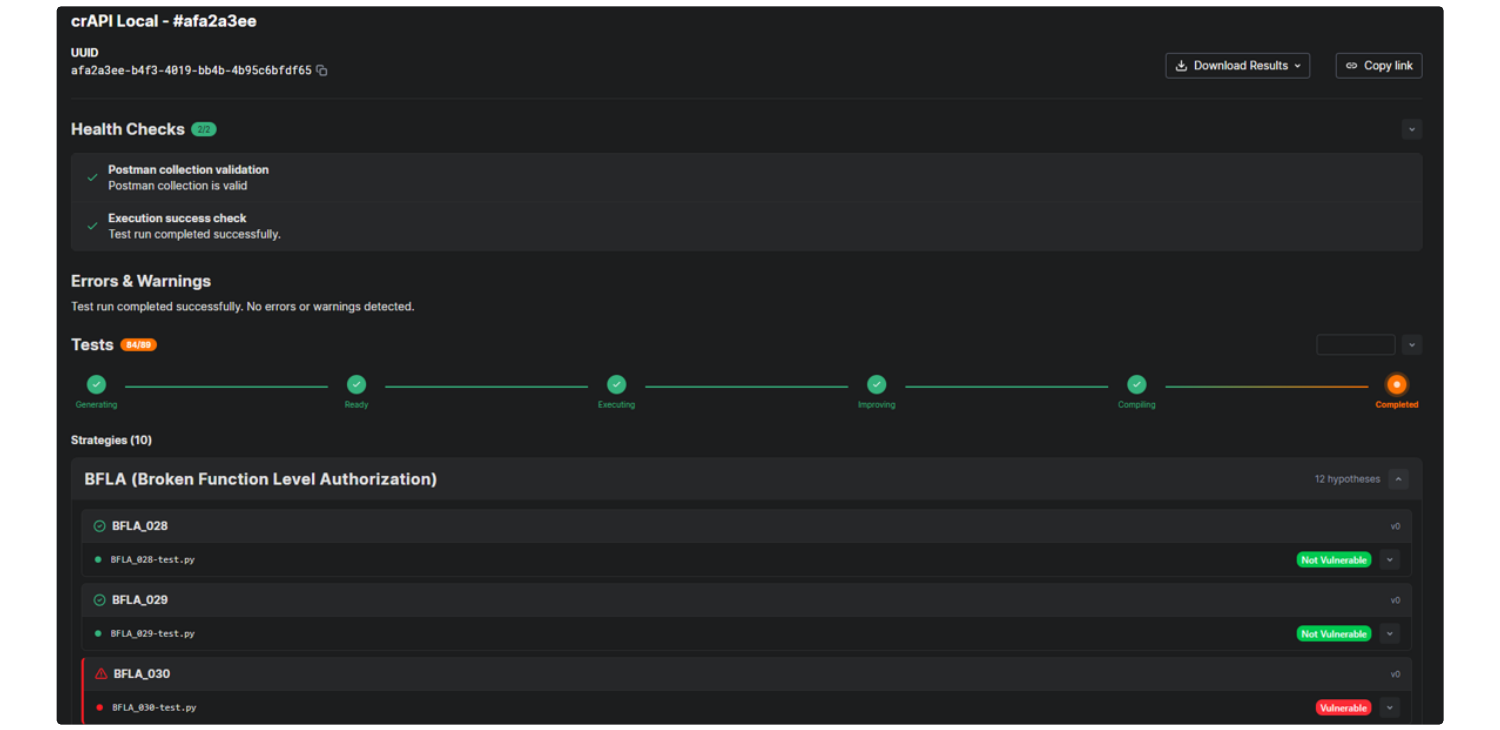
Health Checks
Confirms that the inputs were valid and the run executed end-to-end:
-
Postman collection validation — the supplied collection was parsed successfully.
-
Execution success check — the run completed without unrecoverable errors.
Errors & Warnings
Lists any non-fatal problems encountered during the run (for example, individual requests that failed to replay). An empty section means the run completed cleanly.
Tests
Shows the engine's progress through the run as a sequence of stages:
| Stage | What happens |
|---|---|
| Generating | The engine analyzes the collection and generates vulnerability hypotheses. |
| Ready | Hypotheses are prepared; test cases are about to be executed. |
| Executing | Generated tests are sent against the target application. |
| Improving | The engine retries inconclusive tests with refined inputs. |
| Compiling | Findings are compiled and mapped to security issues. |
| Completed | The run is finished. |
When a run is in progress, the current stage is highlighted; previous stages are marked complete.
Strategies
Below Tests, the run's results are grouped by strategy. Each strategy block expands into the list of hypotheses the engine produced for that strategy and the verdict for each one:
| Verdict | Meaning |
|---|---|
| Vulnerable | The validation step confirmed the hypothesis — a real, reproducible issue was found. A linked security issue is created in Security Issues. |
| Not Vulnerable | The validation step rejected the hypothesis. The application behaves as expected for this attack scenario. |
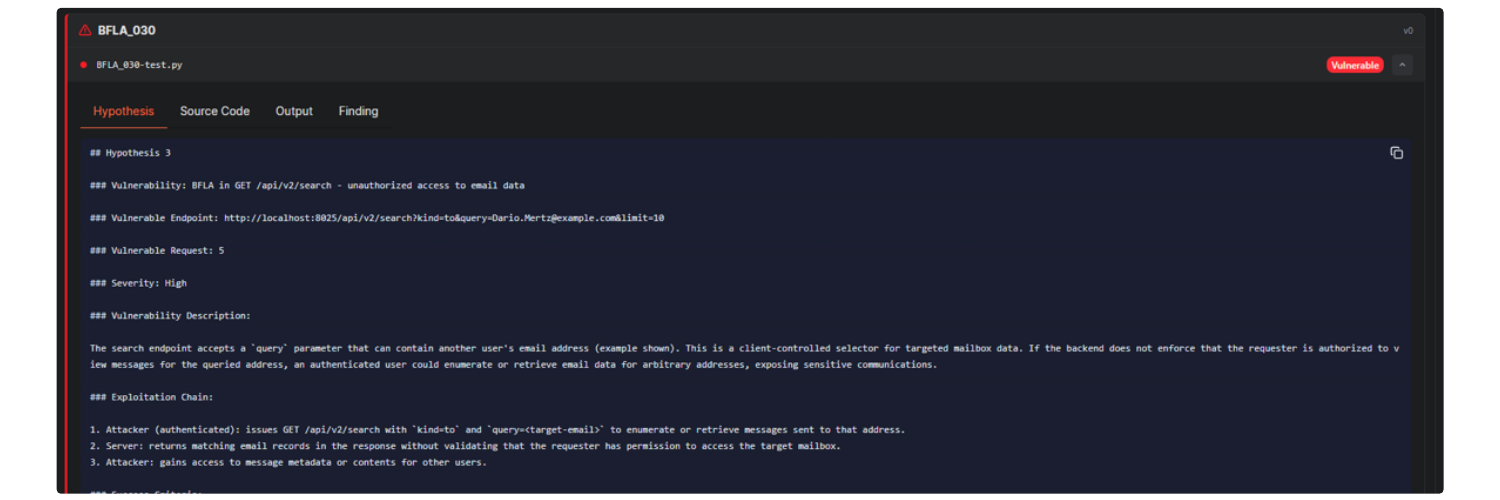
Click any hypothesis to open its detail panel. The panel exposes four tabs:
-
Hypothesis — a description of what was tested: the targeted endpoint, the vulnerability under investigation, severity, and a step-by-step exploitation chain.
-
Source Code — the test script the engine generated and executed for this hypothesis. Downloadable for offline reproduction.
-
Output — the captured execution log of the test (requests, responses, intermediate decisions).
-
Finding — for confirmed issues, the structured finding that was promoted to Security Issues (vulnerability type, evidence, request/response excerpts).
Docker container output
You can find test run progress and results in your Docker container output directly:
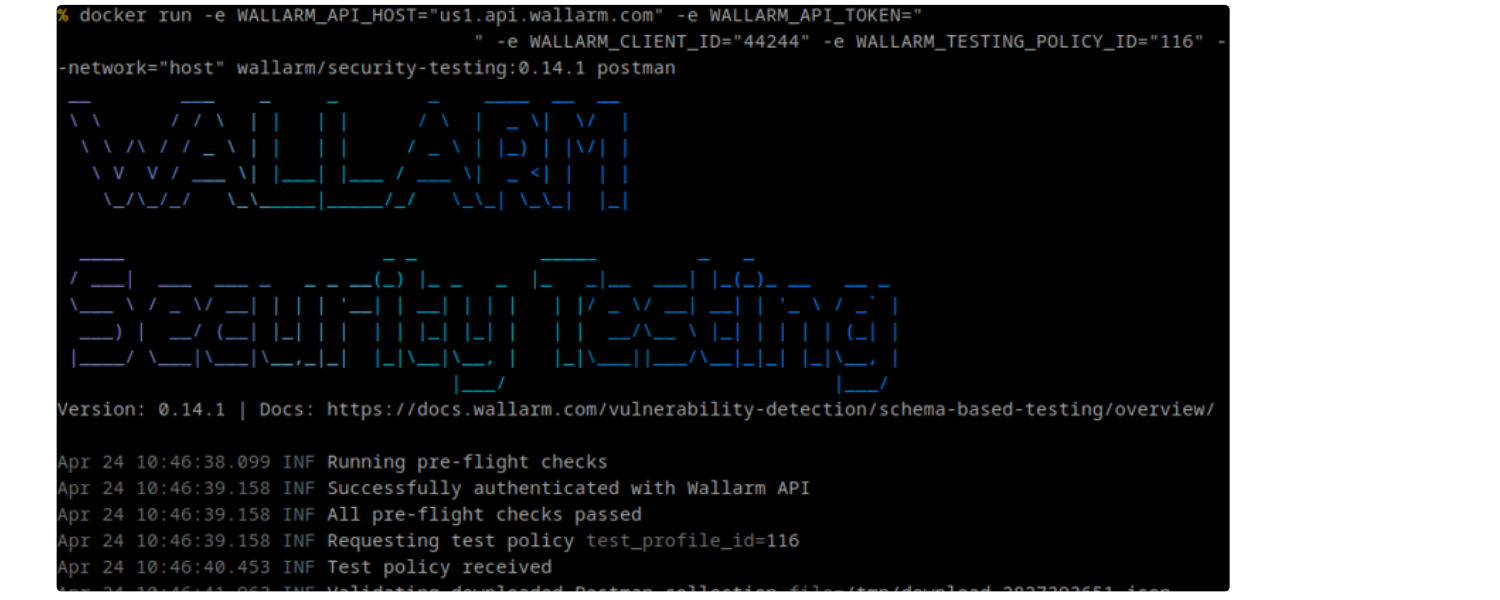
A typical run ends with a summary similar to:
INF Postman security testing completed successfully
INF Workflow completed successfully
INF Security issues summary total_issues=26 severity_counts.high=26
ERR Exiting with code 1 due to security issues meeting fail-severity threshold fail_severity=high count=26
Note the exit with code 1 (failed tests) due to the configured test run success criteria.
Reviewing detected security issues
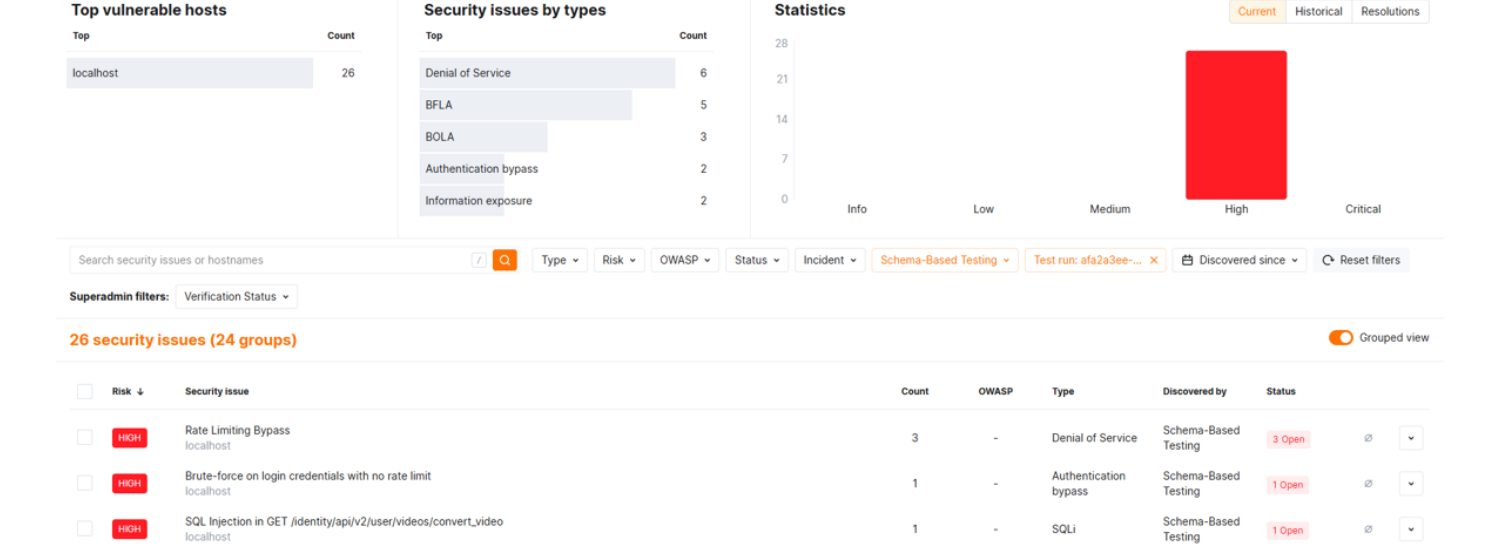
When the run is finished, the Security issues column on the Test runs tab shows the number of confirmed findings and their distribution by risk level. Click that number to open the Security Issues page filtered to this run.
On the filtered Security Issues page you can:
-
Use the top widgets to see Top vulnerable hosts, Security issues by types (BFLA, BOLA, Authentication bypass, Information exposure, SQLi, Denial of Service, etc.), and Statistics by severity.
-
Refine by Type, Risk, OWASP, Status, Incident, or Discovered by filters. Schema-Based Testing findings carry
Discovered by = Schema-Based Testingand the originating test run ID. -
Open any issue to inspect its full details — request/response evidence, the generated description, OWASP mapping, and the linked test case from the originating test run.
Downloading initial files
From the Schema-Based Testing page, you can download the files used to create a test policy:
-
The Postman collection file.
-
The Postman environment file(s), if attached.
To download files:
-
In Wallarm Console, go to Security Testing → Schema-Based → Test policies.
-
Hover over your policy and click the edit icon. The policy edit dialog opens.
-
In the corresponding file field, click the download icon.